How To: Blocks and Patterns
Add Blocks & Patterns
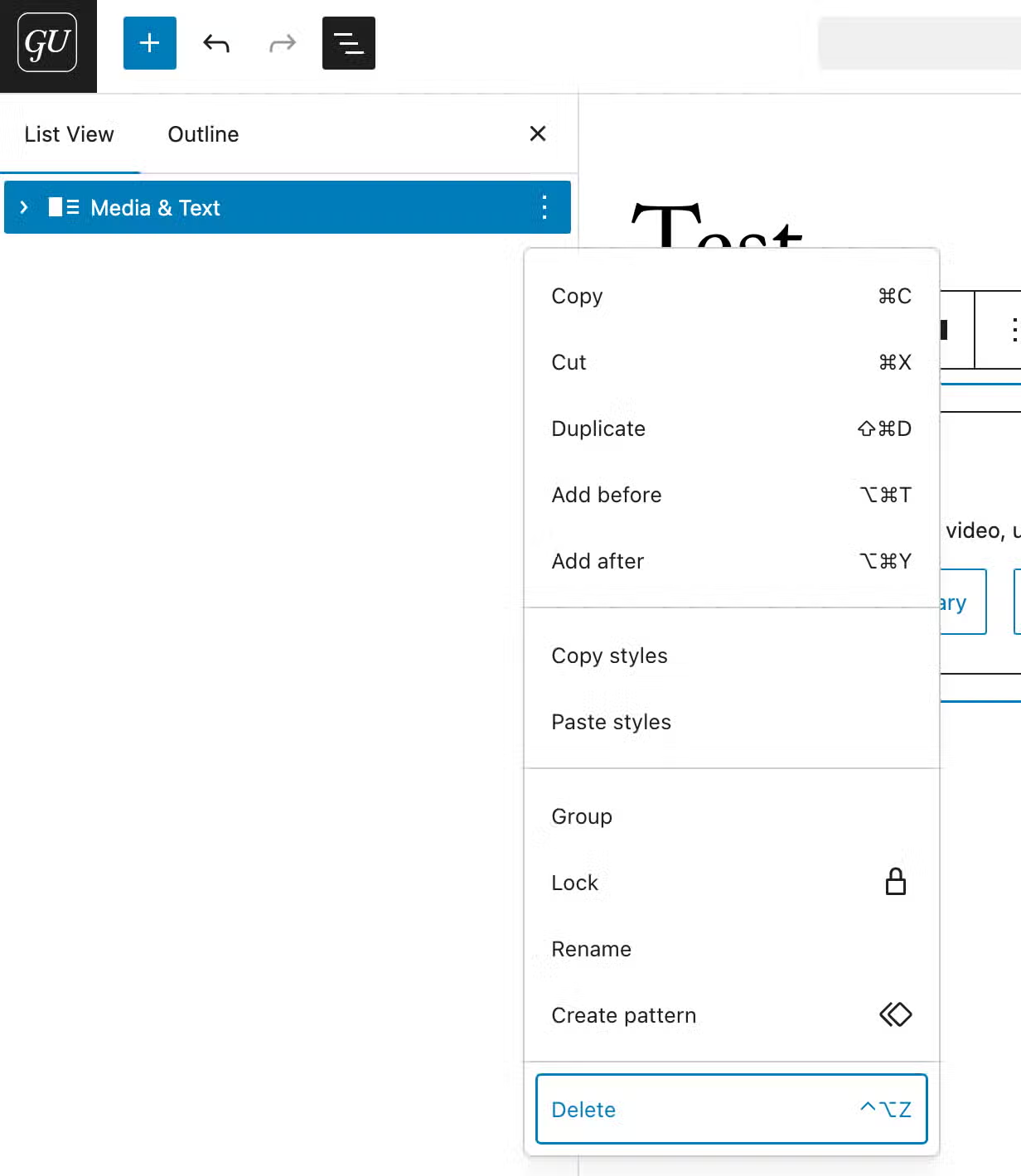
In the page editor, the default block to start with is the paragraph block. To add other blocks and patterns click on the + symbol in the top left corner. You can use / in the content editor as a shortcut for adding blocks but not for patterns so it is recommended to use the + symbol for adding both blocks and patterns since the search in the block and pattern inserter will show results for both.


What is a Pattern?
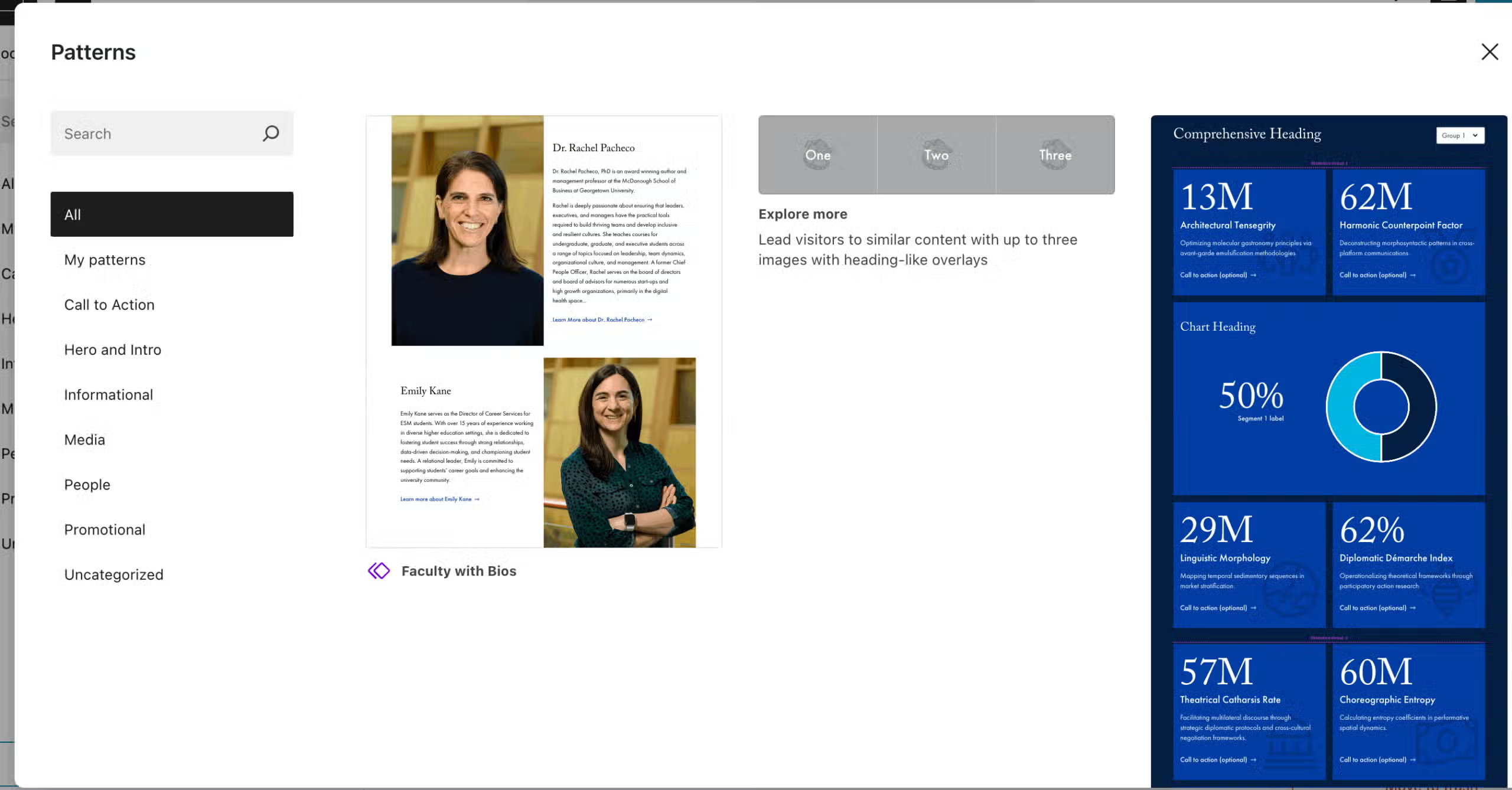
A pattern is a group of blocks you can insert into the site and customize with your own content.
Edit Blocks
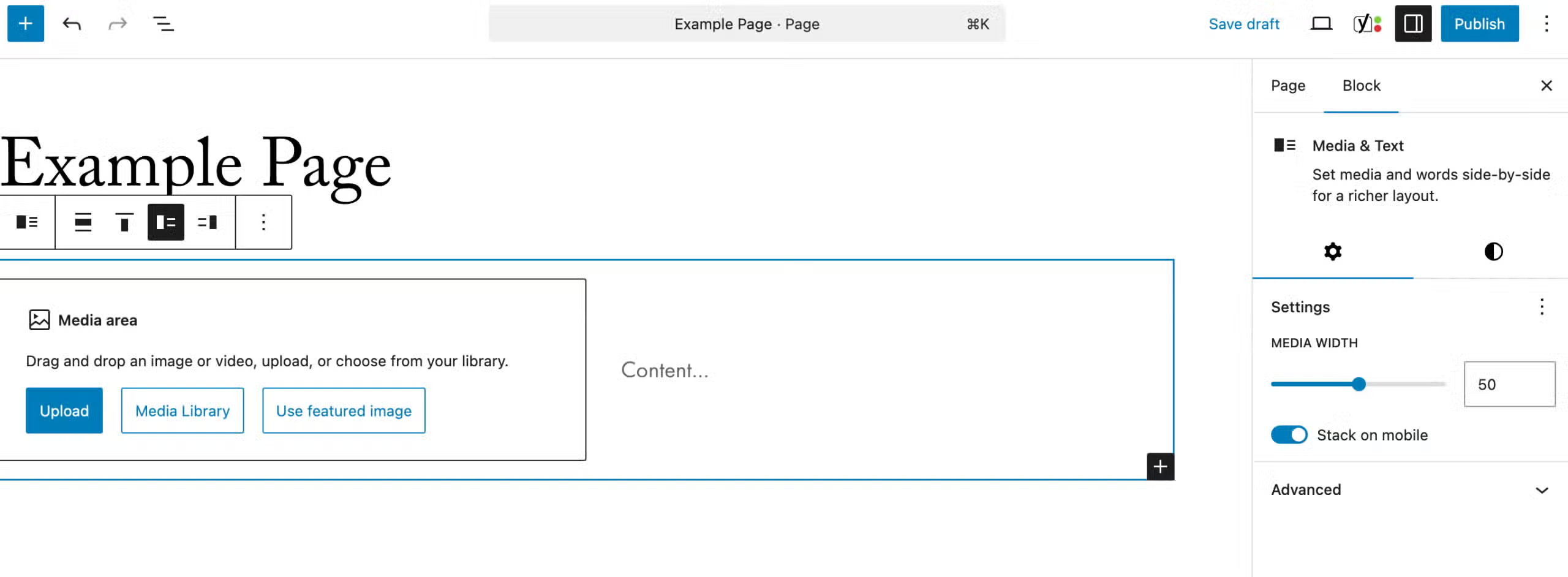
Editing blocks happens in the content editor. You can add content directly into the block and look at various options and settings in the Inspector Panel, the sidebar on the righthand side.
Edit Patterns
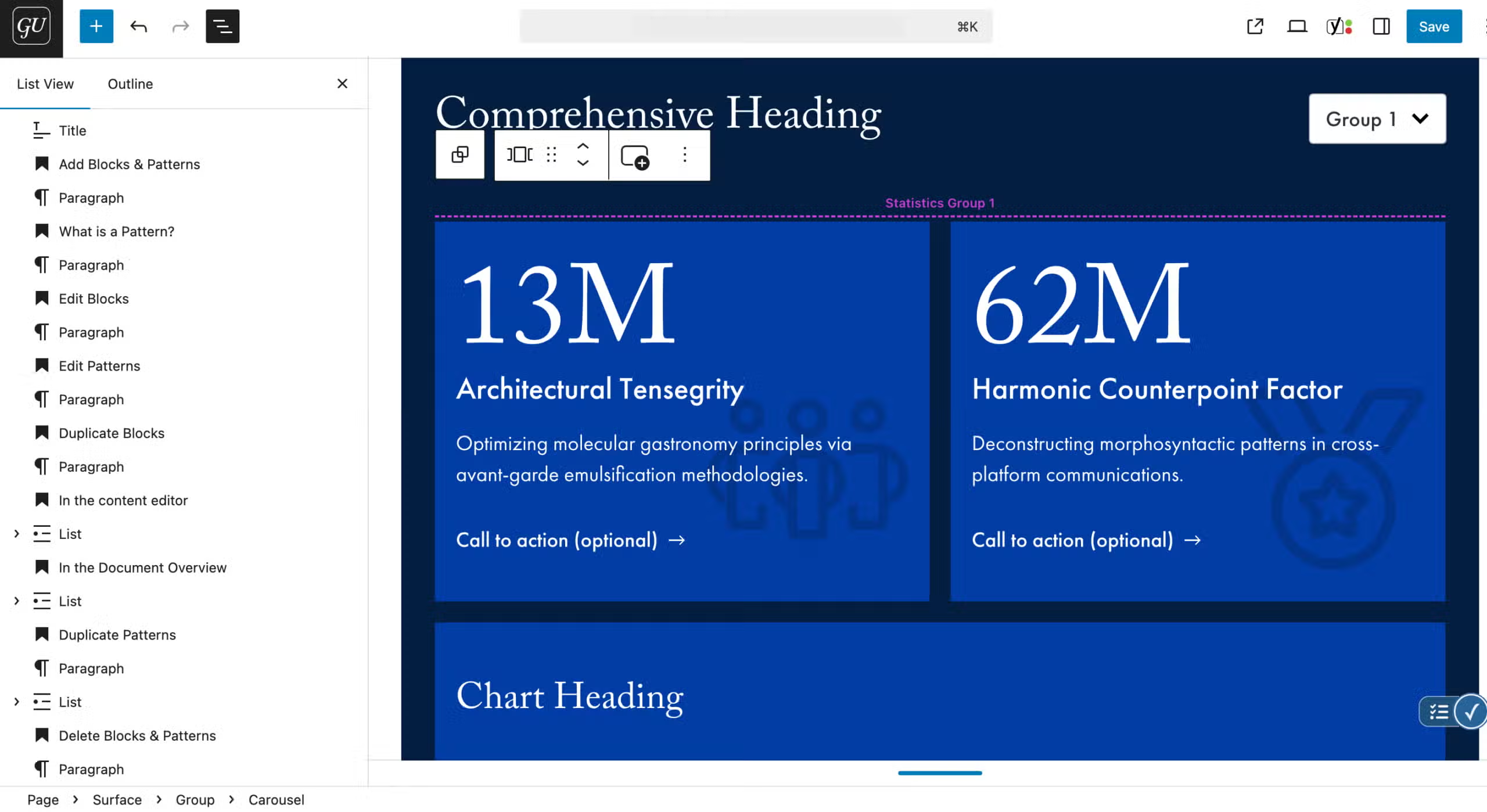
Editing patterns in the MarTech is much more granular than editing blocks. The patterns have nested components so we highly suggest using the Document Overview option (next to the undo and redo arrows in the top left corner) so you can see all the parts of the pattern.
Duplicate Blocks
There are two ways to duplicate blocks and patterns: in the content editor and in the Document Overview.
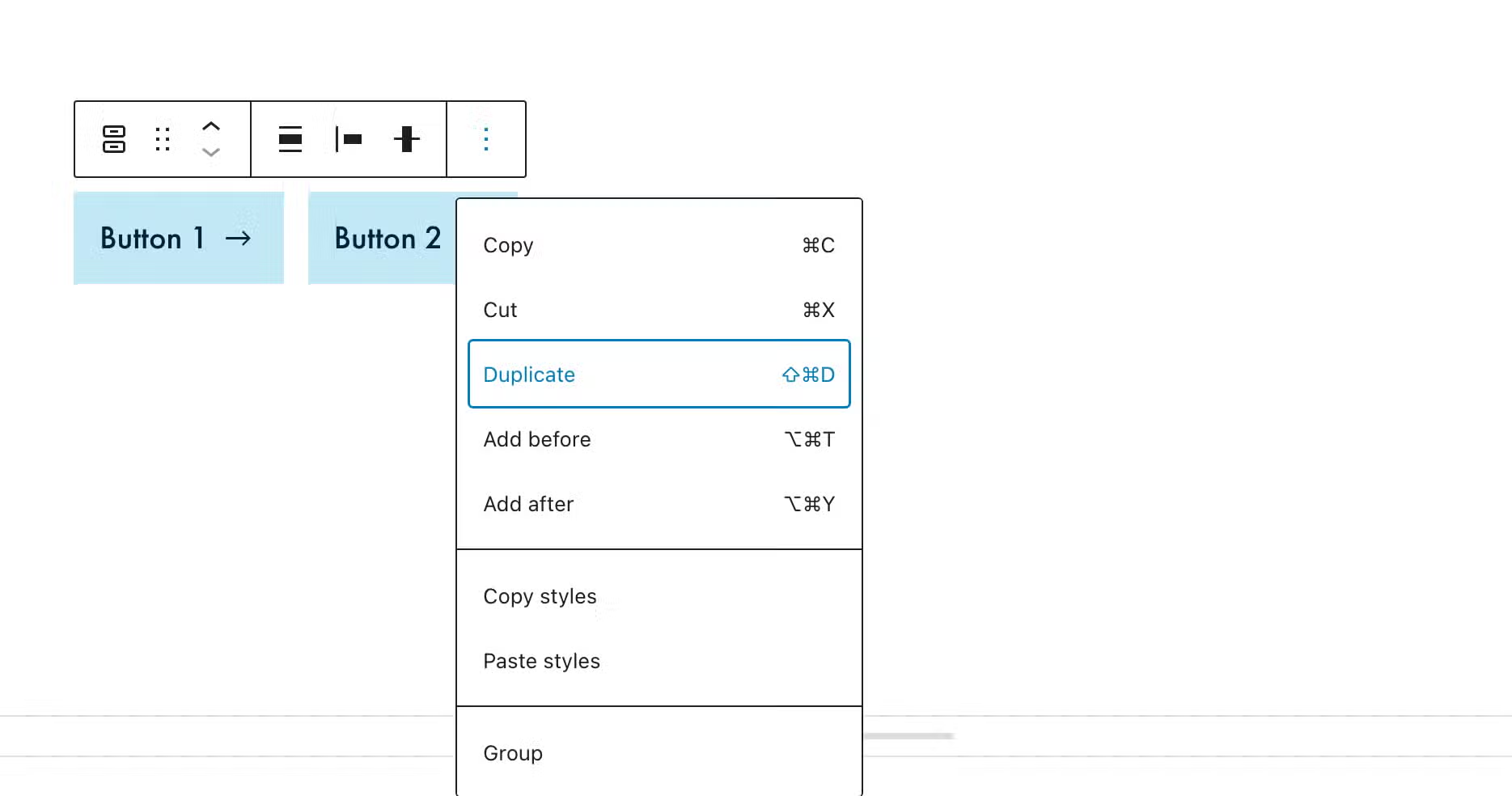
In the content editor
- Select the block you want to duplicate
- Click on the options button (3 vertical dots) in the tool tip
- Click on “Duplicate”
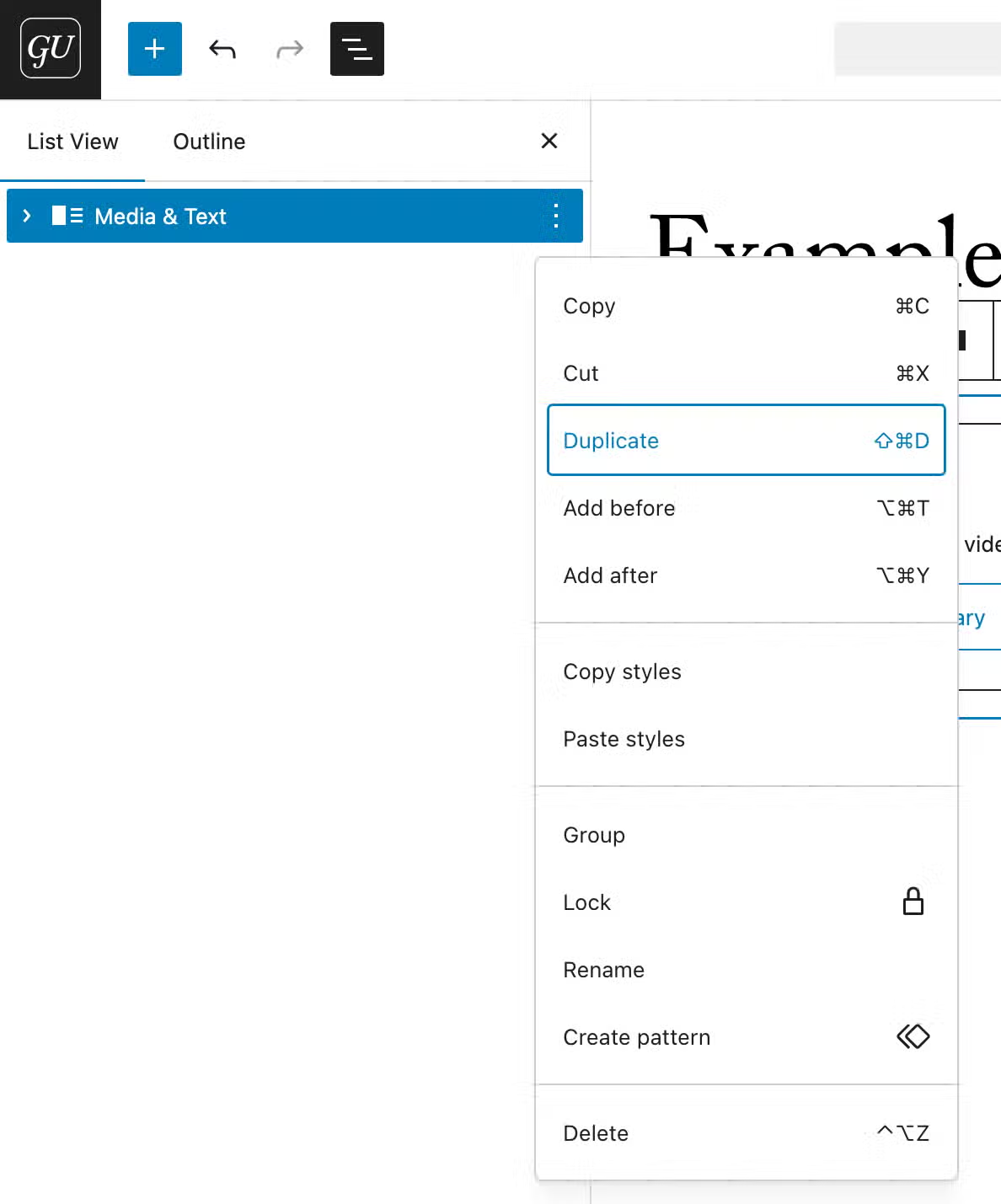
In the Document Overview
- Open the Document Overview
- Select the block(s) or pattern(s) you want to duplicate (hold down shift to select more than one)
- Click on Options (3 vertical dots)
- Click on “Duplicate”
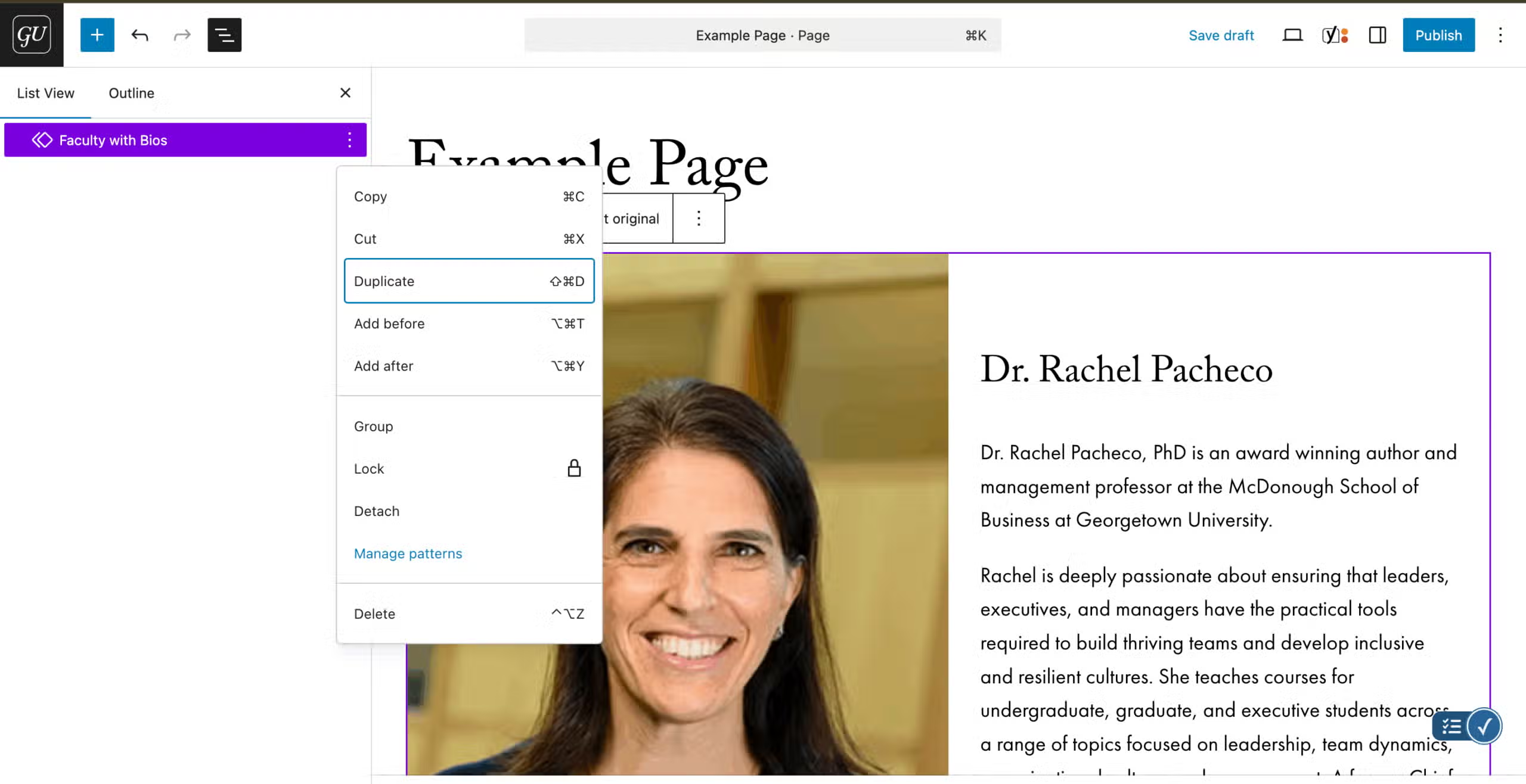
Duplicate Patterns
While you can duplicate patterns in the content editor it is recommended to use the Document Overview so you know you have selected the topmost block in the group.
- Open the Document Overview
- Select the block(s) or pattern(s) you want to delete (hold down shift to select more than one)
- Click on Options (3 vertical dots)
- Click on “Duplicate”
Delete Blocks & Patterns
There are two ways to delete blocks and patterns: in the content editor and in the Document Overview
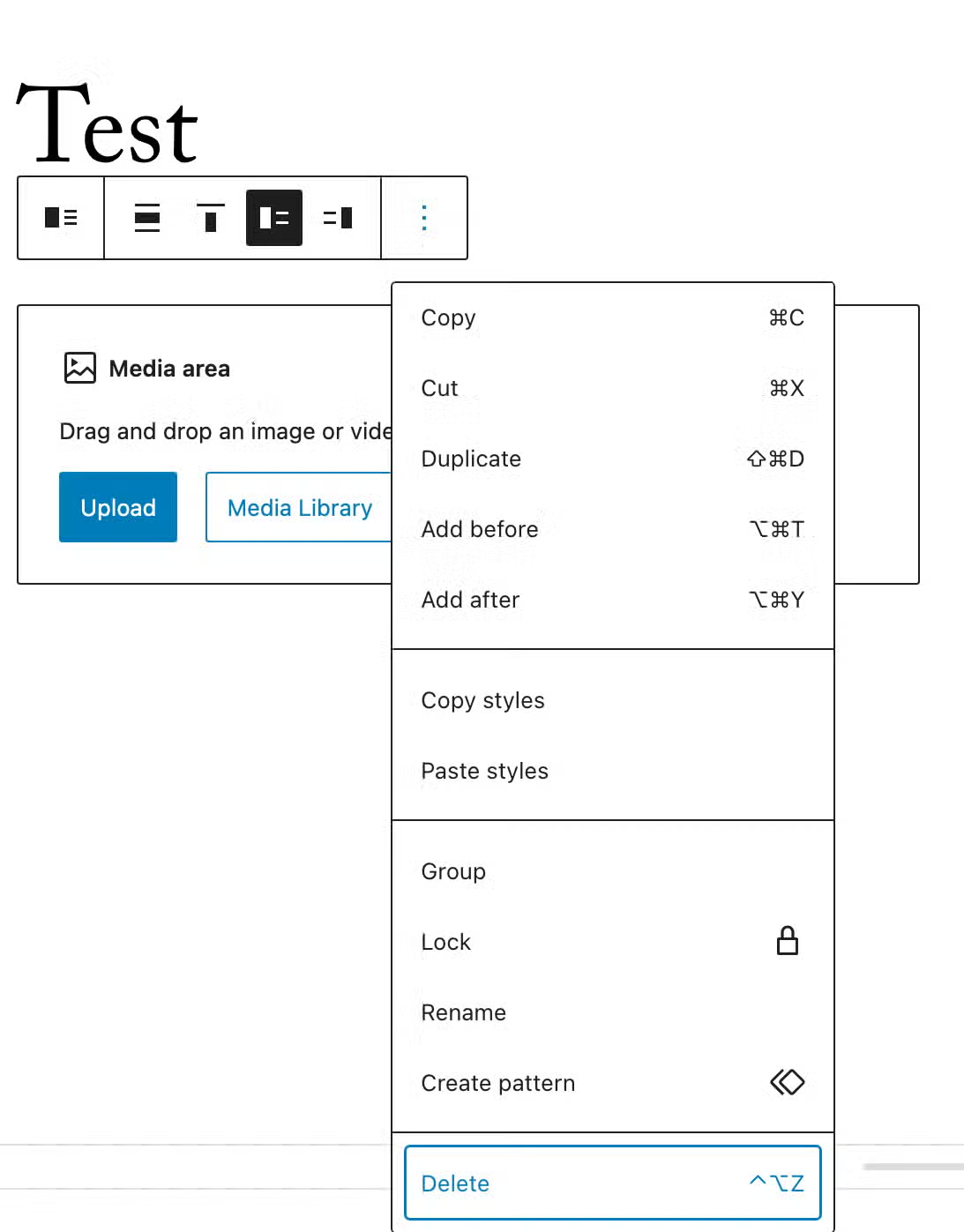
In the content editor
- Select the block you want to delete
- Click on the options button (3 vertical dots) in the tool tip
- Scroll down and click on “Delete”
In the Document Overview (recommended)
- Open the Document Overview
- Select the block(s) or pattern(s) you want to delete (hold down shift to select more than one)
- Click on Options (3 vertical dots)
- Scroll down and click on “Delete”