Adding the Block
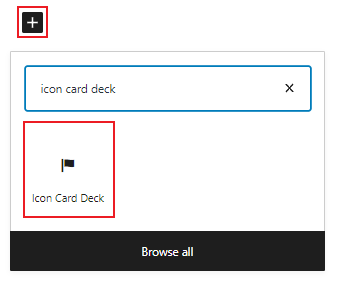
To add the Icon Grid block, click the “+” symbol and search for “Icon Grid”. Then select the Icon Grid block icon.
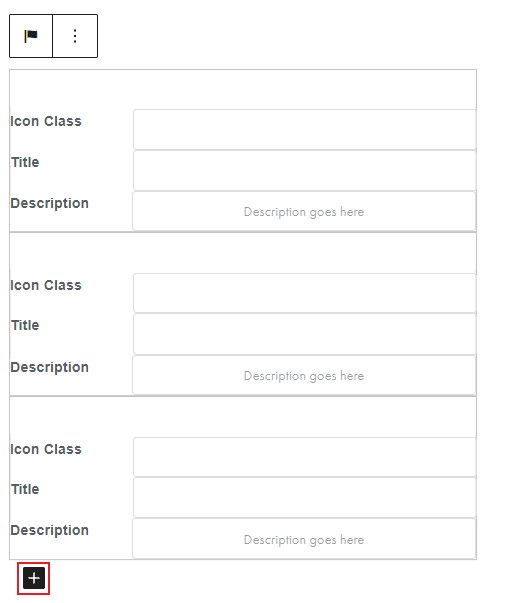
The Icon Card Deck editor will open with a default of three Icon Cards with fields for an icon class, a title, and an optional description.
Editing an Icon Card Deck
To add content to a card, click on one of the cards in the deck.
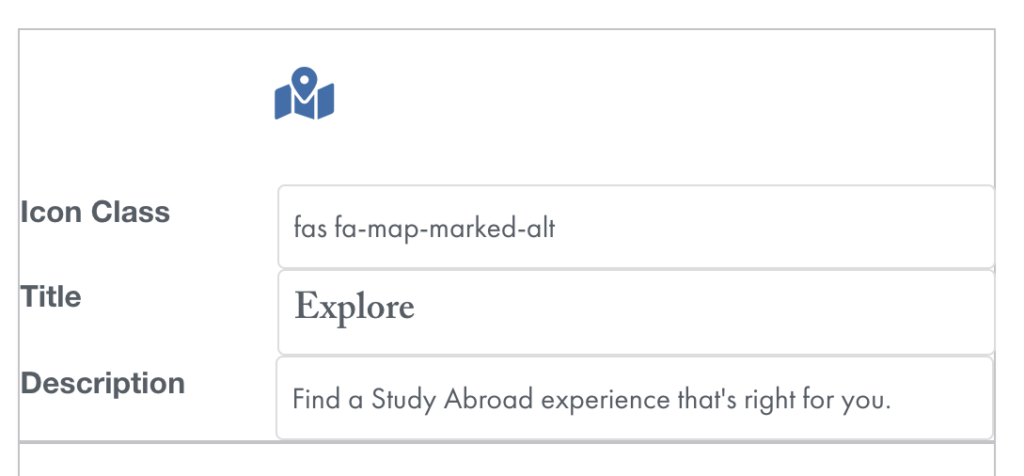
You can search for different icon options from the Font Awesome Icon list. Once you have found an icon you like, copy the class name and paste it into the Icon Class field.
Next, add text associated with the icon in the Title and Description fields.
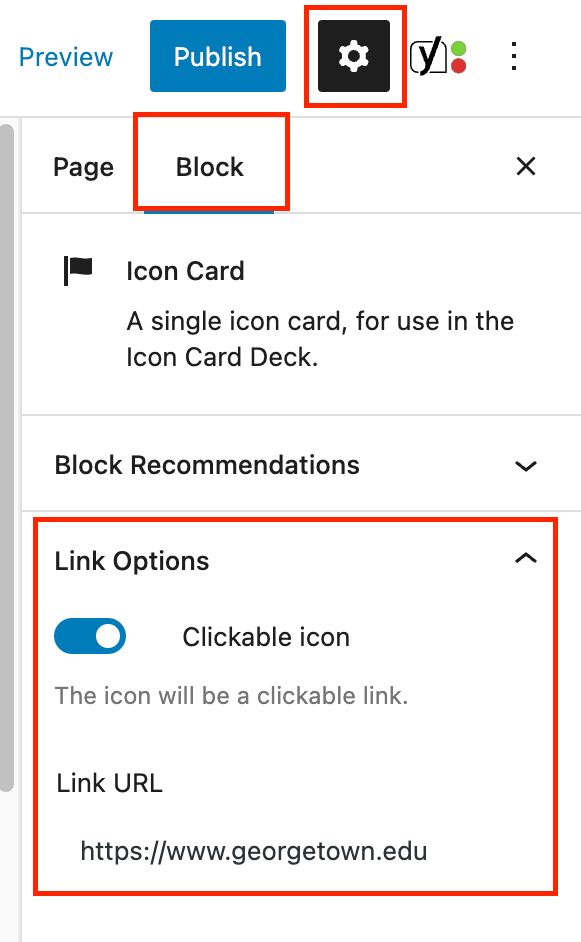
To create a link using the icon, click on the card and go to the block tab of the inspector panel on the right. Toggle the “Clickable icon” option on and add your URL in the text box below.
To add more cards to the deck, click the plus sign at the bottom of the block editor.