
03/24/2026 Release Notes
In this release, we’ve included two new 1789 patterns under the Promotional category. We will need to turn on these patterns for your site if you want to use them. Please send a message to webservices@georgetown.edu and let us know the URLs of the 1789 sites you want to use them on. Once they are enabled, you will access them via the Patterns section of the block inserter (the blue plus sign in the upper-left corner)  . Note: You will see the following patterns in that section that are now functional – Image Carousel Hero, Section Heading, Image Carousel, and Interactive Content Pane.
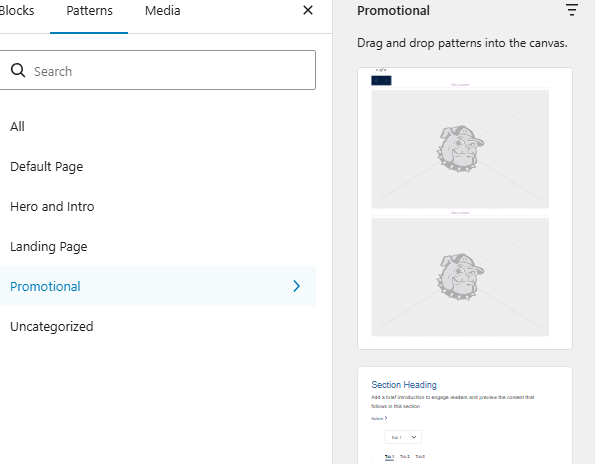
- [New Pattern] Image Carousel: We added a new pattern that allows you to include multiple images within one carousel. The carousel is manually controlled through clicks or the keyboard. This is the replacement for the deprecated image carousel block.

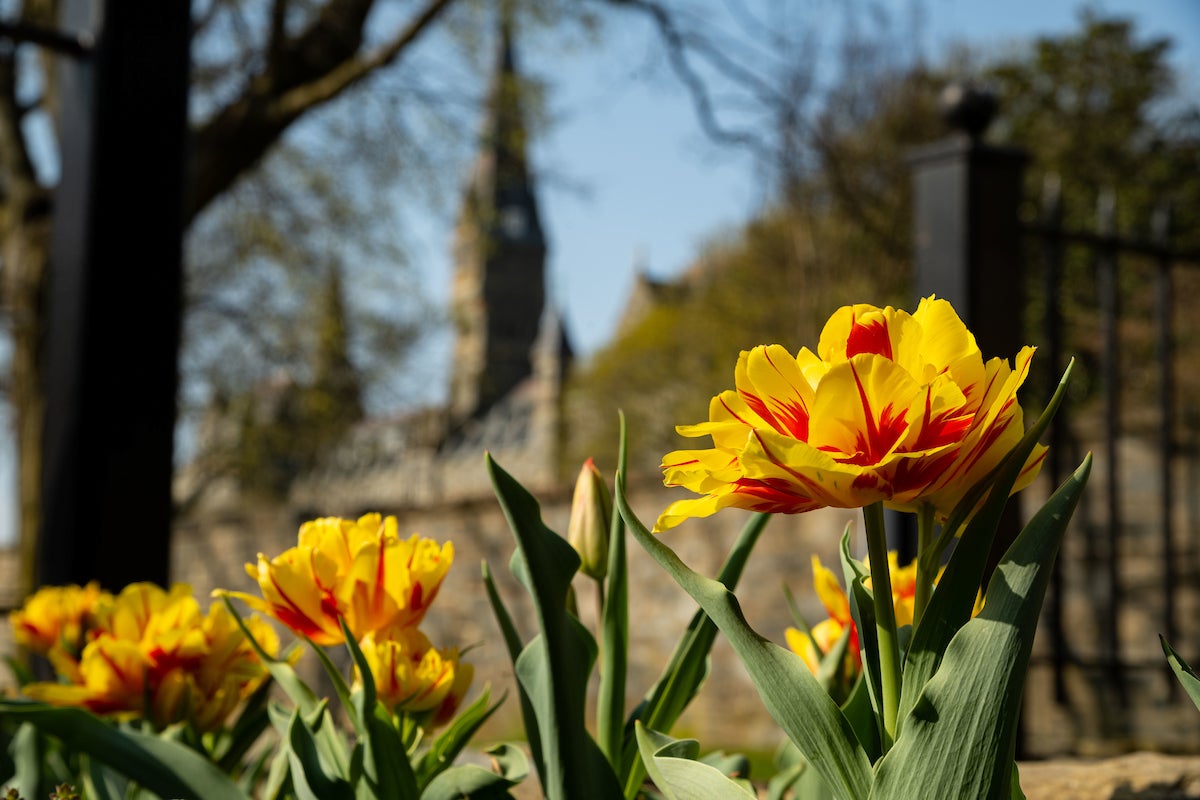
Yellow Double Tulips

Some important notes about this carousel: The carousel does not show captions.
This pattern should only be used on the Homepage, Default, Parent-child, and Landing pages (Post Filter and Chaptered are not supported).
Patterns are made up of several blocks nested together. To work with this pattern, we recommend opening up the document overview (the three horizontal lines button in the upper-left corner). This will show you the pattern, and you can expand it to show all of its sub-blocks. We also advise you to open the inspector panel.
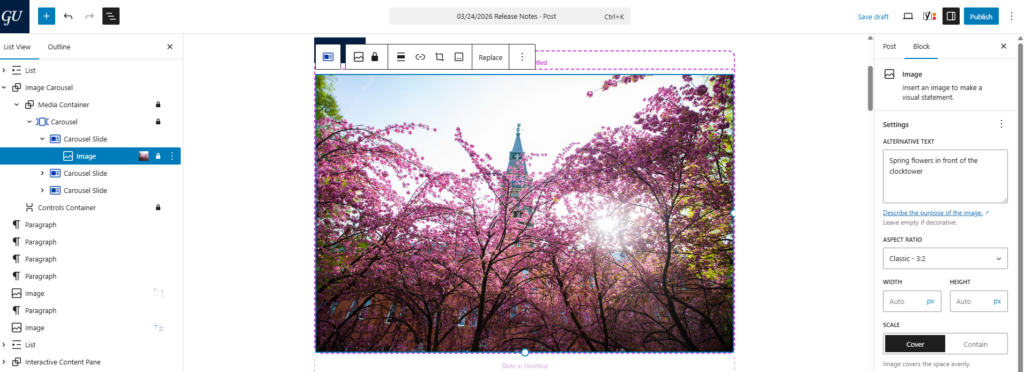
- [New Pattern] Interactive Content Pane: We added a new pattern that allows you to include multiple images within a tab panel format.
Interactive Content Pane
This pattern mimics the block found on the Capitol Campus Site

Georgetown in the Spring
A beautiful thing to see and something that brings joy to Jack as he runs around.

Write a short, compelling headline here
Replace this with a brief summary that supports the headline above. Aim for two or three sentences that describe the key message for this tab. The call-to-action button below is optional; unless it has a link, it will be hidden.
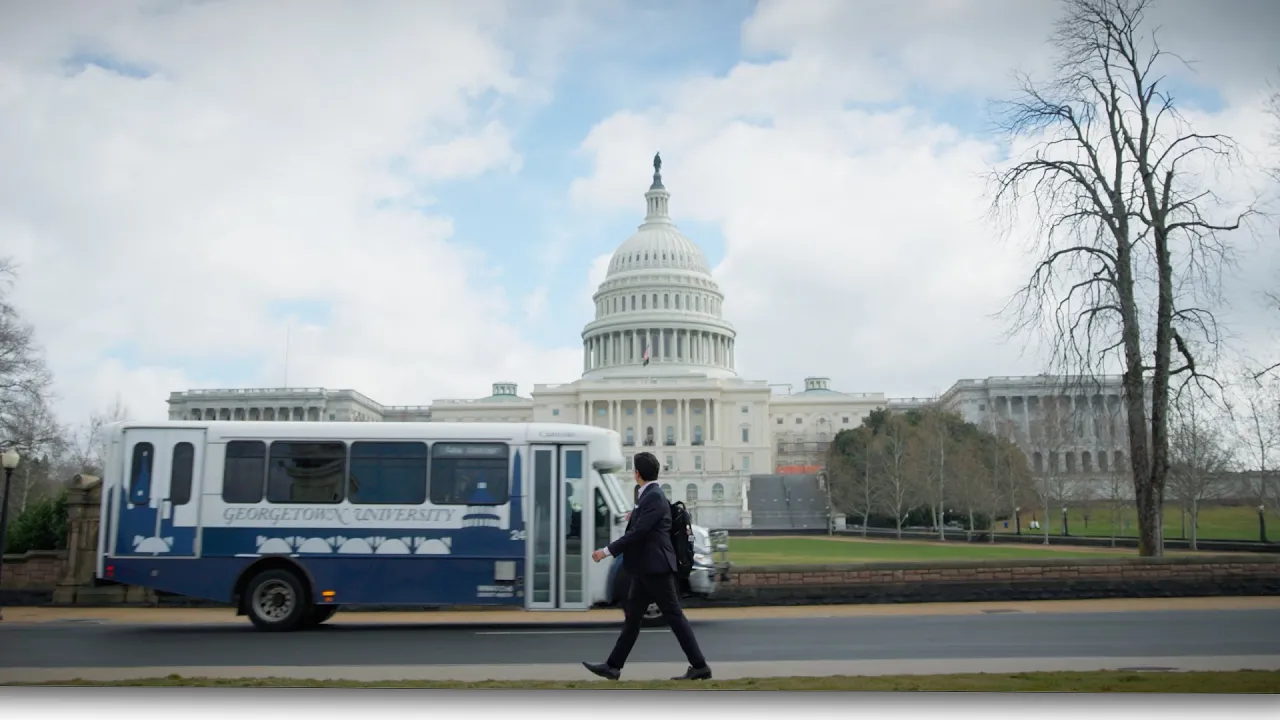
Video Example
YouTube videos can work here and this gives you a versatile way to include content.
Some important notes about this pattern: Each panel consists of a slide that accepts either an image or a YouTube video. The slide also contains Heading and Paragraph sections, as well as an optional CTA, all of which will overlay the image or video in the pane while it is active. You must set the slide name for each slide in order to update the tab titles. Please do not include captions on your images – they will not appear.
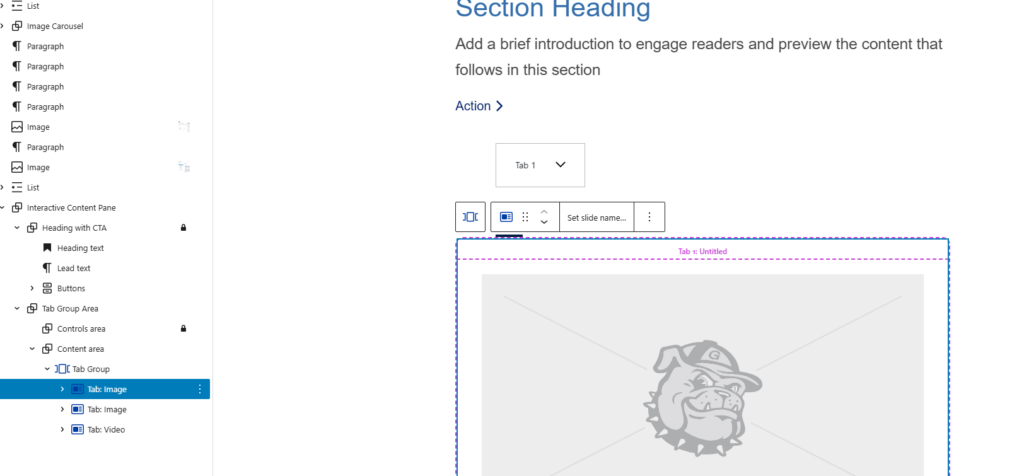
This pattern should only be used on the Homepage, Default, Parent-child, and Landing pages (Post Filter and Chaptered are not supported).
Patterns are made up of several blocks nested together. To work with this pattern, we recommend opening up the document overview (the three horizontal lines button in the upper-left corner). This will show you the pattern, and you can expand it to show all of its sub-blocks. We also advise you to open the inspector panel.
- Tagged
- Release Notes