

When to Use a Page vs. a Post: Structuring Your Content Effectively
Posted in The Cache
February 2025
One of the most common questions website editors ask is: “Should I create a page or a post for this content?” While WordPress offers both options, understanding their distinct roles will help you maintain a well-organized and user-friendly website. Let’s break it down.
Understanding the Difference: Pages vs. Posts
Pages are for static, timeless content that doesn’t change often. They form the backbone of your site’s structure and typically include information that remains relevant over time. However, some high-profile pages, like the homepage, may feature dynamic elements—such as event listings, news updates, or featured stories—that refresh frequently to keep the page engaging and current.
Posts, by contrast, are dynamic and time-sensitive. They’re used for content that’s regularly updated, categorized, and archived—like news updates, blog articles, or event announcements. The key distinction is that posts exist as individual, timestamped entries meant to be categorized and archived over time.
When to Use a Page
Use a page when you need to create:
- Departmental or Office Information: Example: “About Us,” “Our Team,” or “Contact Information.”
- Core University Resources: Example: “Academic Programs,” “Admissions Guidelines,” or “Campus Policies.”
- Frequently Accessed Content: Example: “Student Handbook” or “Faculty Resources.”
- Landing Pages for Major Sections: Example: “Research Initiatives” or “Diversity & Inclusion.”
Pages are hierarchical, meaning you can organize them into parent and child structures for better navigation (e.g., a main “Academics” page with subpages for “Undergraduate Programs” and “Graduate Studies”). Read more about pages in our Whitehaven theme or our 1789 theme for more details specific to your site.
When to Use a Post
Posts contain many of the same content fields as pages, but consist of web content that is usually date specific and can be featured on other pages, such as news articles and announcement posts being featured on the home page. You create posts in much the same way as pages. It is possible to add tags and categories to posts which will allow editors to filter through publications and specify which posts appear on pages. WordPress also automatically generates archive pages that serve as a running feed of posts with a particular category or tag. Posts are ordered by date, so the relationship between posts is chronological.
If you’re unsure whether to use a page or a post, consider how the content fits within your site’s structure. Does it need to be categorized with similar updates? If so, it’s probably a post. Will it serve as a reference point for years to come? Then it’s likely a page.
Posts are often used in conjunction with the News or Featured Stories block to display relevant posts on other pages. For example, you might periodically create posts profiling new research by faculty in your department or create posts that announce new and relevant information for your website users. These posts could then be displayed on your homepage or another relevant page using one of the aforementioned blocks.
Use a post when you need to:
- Share News and Updates: Example: “University Receives Grant for Sustainability Research.”
- Publish Blog-Style Content: Example: “Tips for First-Year Students” or “Faculty Spotlight: Dr. Jane Smith.”
- Announce Events or Deadlines: Example: “Upcoming Admissions Webinar on March 15.”
Posts are chronological and can be categorized and tagged for easy organization. This makes them ideal for sections like “News,” “Events,” or “Student Stories.” Read more about posts in our Whitehaven theme or our 1789 theme for more details specific to your site.
Release Notes
2/13/2025
- [Important] Please clear your browser cache! Our latest WordPress update included database changes and you will need to clear your cache to resume editing ability. Please try one or all of the following:
- With most browsers, navigate to Settings-Privacy/Security and you will find options to clear your browsing history and cookies
- Do a hard refresh while in your browser (Command + Shift + R on Mac or Shift + on PC)
- [Upgrade] We have upgraded to the latest version of Editorially. It is more assertive if you have potential accessibility issues on your page.
1/29/2025
- [Enhancement] External Link icon is now aligned with the text in menus: the external link icon size and placement has been adjusted so that it no longer falls below items in the main navigation and footer menus. This adjustment can also be seen in the utility and sub-navigation menus.
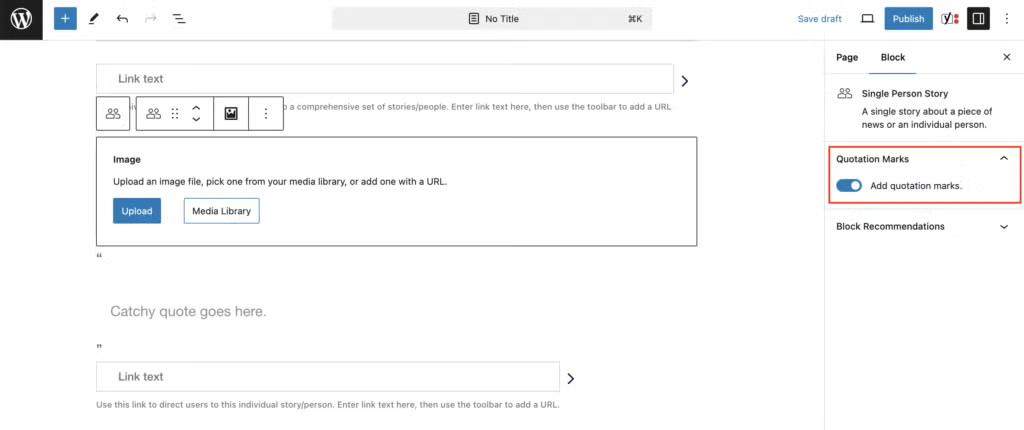
- [Enhancement] Quotation Marks can be turned off on People Stories blocks: we received several requests for this and are happy to note this is now a toggleable feature. Quotation marks can be turned on or off for each Single Person Story using the toggle button under Quotation Marks as shown in the image below. When turned on, quotation marks will also be visible in the editor and disappear if toggled off.
WordPress and Accessibility Office Hours
We will continue to hold both Web Accessibility and WordPress office hours every Tuesday afternoon over Zoom throughout the year.
WordPress office hours appointments are every Tuesday, 2:30–3:30 p.m. via Zoom. You can sign up for an appointment slot (for any future office hours date!) here. Please note that we are unable to accommodate unscheduled appointments. If you are currently experiencing an issue outside of office hours, or wish to submit a feature request, please use this form to capture that information.
Web Accessibility office hours are every Tuesday, 2:00–3:00 p.m. via Zoom. You can talk through accessibility-related questions with Kevin Andrews, Electronic and Information Technology Accessibility Coordinator. Please schedule a web accessibility office hours appointment here.